AI Photo Enhancer & AI Studio
- 4.2
- Rating
- 1.00M
- Installs
- Free
- Price

 Analysis by App-foxy
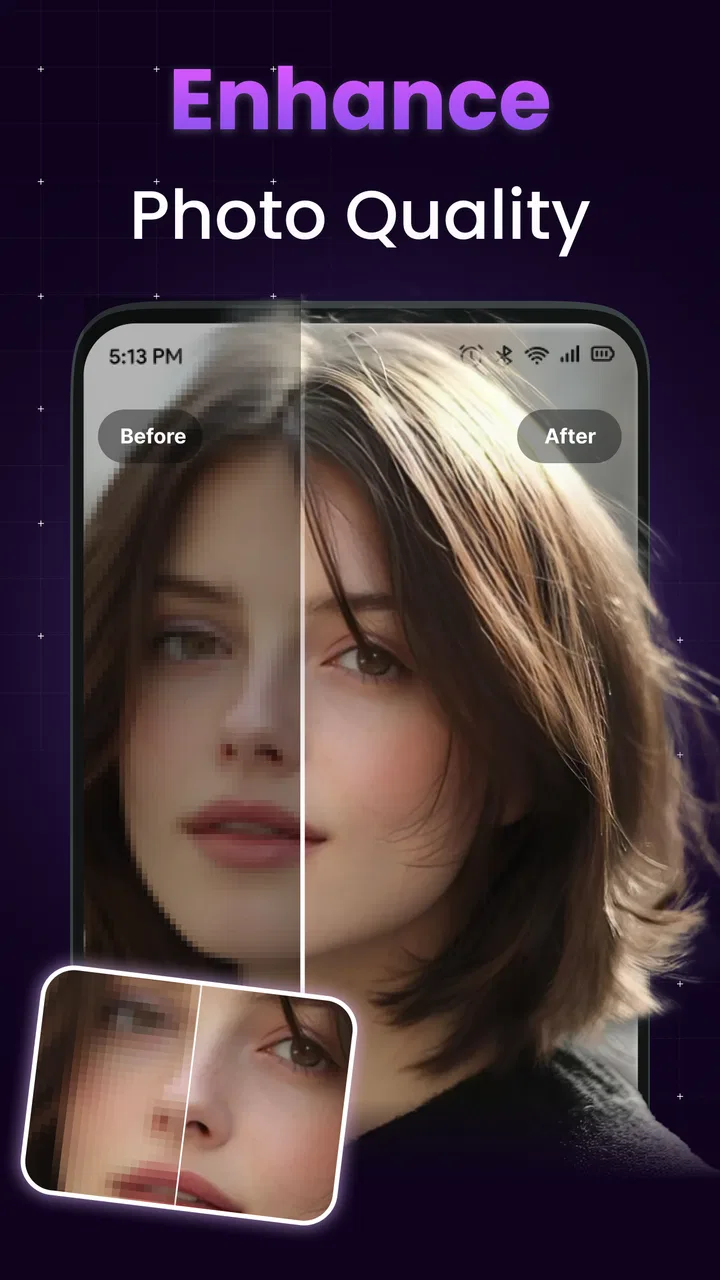
I tested AI Photo Enhancer & AI Studio as a practical photography app rather than treating it like a one-tap miracle. Its purpose is straightforward: improve photos that look soft, noisy, pixelated, or generally too low-quality to share. In my experience, it is most useful when a picture has emotional value but poor technical quality, such as an old family snapshot, a compressed image saved from a messaging app, or a slightly blurry photo that would otherwise stay hidden in the gallery.
The app comes from Zetfun Studio and is available free of charge on Android. It is aimed at Everyone, so the basic concept is easy to understand even if you are not familiar with editing software. The app belongs to the photography category, and its store summary focuses on repairing older and low-quality images. That narrow purpose is important: I would not choose it as my main camera editor, collage maker, or full photo-design workspace. I see it more as a repair tool that you open when an existing image needs help.
Its current version is 3.8.229, and it runs on Android 8.0 or later. That makes it accessible on many older phones, although the actual experience can still depend on the device, image size, and the amount of processing required. The app has passed the one-million-install mark and holds an average rating of 4.2 from around seventeen thousand ratings, which suggests that the idea works for a sizeable audience while leaving room for individual results to vary.
You May Also Like

 Blood Strike: 2.5 Anniversary
Blood Strike’s Loadouts Turn Every Drop Into a Tactical Gamble
A close look at Blood Strike’s custom loadouts: how fast access to signature weapons reshapes its battle royale rhythm, rewards preparation, and narrows the gap between fights.

 Pandora - Music & Podcasts
Pandora’s Music Is Easy to Start, but Harder to Recover
Pandora’s strength is its low-effort path from a seed to a station. Its weak spot is how much confidence it asks you to place in connection, setup, and quiet recovery.

 8 Ball Pool
 Is Built on Rivalries, Rematches, and Routine
A close look at the rivalries, rematches, shared routines, and unanswered safety questions that turn a quick pool match into a persistent mobile community.

 Samsung Music
’s Quiet Strength Is Playing What You Already Own
Its reach comes less from spectacle than from dependable access to a personal library. That simplicity is both the app’s strongest retention engine and its ceiling.

 AccuWeather: Weather Radar
AccuWeather Review: A Quick, Clear Forecast for Everyday Decisions
For everyday plans, the best forecast is the one you can understand quickly. AccuWeather makes rain timing, radar, and local conditions easy to act on, with a few trade-offs.

 Hill Climb Racing
Why Hill Climb Racing Still Turns Crashes Into One More Run
A tiny car, a bumpy hill and one more upgrade: Hill Climb Racing keeps resurfacing because its simple chaos makes every near-miss feel personal.
More From Our News Desk



Where the free access helps, and where paid value begins
The most important cost detail is that the app can be installed and used without an upfront purchase. That makes it easy to test on a real photo before deciding whether it deserves a permanent place on your phone. I prefer this approach for an enhancer because image restoration is highly dependent on the original file. A feature that looks impressive on one portrait may produce a less convincing result on a dark group photo or a heavily compressed screenshot.
There are in-app purchases ranging from $1.99 to $59.99 per item. That is a wide span, so I would not judge the app’s value from the existence of purchases alone. The sensible approach is to begin with the free access, inspect the result carefully, and only consider spending money if the improvement solves a specific problem for you. A paid option is easier to justify when the picture has personal importance or when you need a usable image for a particular purpose.
I would be cautious about assuming that paying automatically turns every damaged photograph into a sharp original. Enhancement can reconstruct a more pleasing appearance, but it cannot reliably recover details that were never captured. If a face is only a few blurred pixels, the result may look cleaner without becoming historically accurate. That distinction matters when restoring family photographs: a visually attractive repair is not always a faithful record.
The free entry point also changes how I compare it with alternatives. A traditional editor may offer more control but require time, knowledge, or a subscription. A phone gallery editor may handle brightness, cropping, and color more naturally but do little for severe blur or pixelation. This app is valuable precisely because it concentrates on the difficult first step: making a weak source image more usable before ordinary editing begins.
A workflow that produces more dependable results
I would start with the original file, not a screenshot of the image preview. Every extra save through a messaging service or social network can introduce compression, and an enhancer has less useful information to work with after that. If the photograph is printed, I would scan it as clearly as possible before importing it. A clean scan gives the app a better foundation than a quick, angled phone picture of the print.
Before processing a large batch, I would test one representative image. Choose a photo that contains the problem you care about most: a face, small text, a distant subject, or visible noise in a dark area. Look at the result at normal viewing size as well as zoomed in. At high magnification, artificial edges can seem alarming even when the picture looks better in a message or album; at normal size, the opposite can happen, with smoothing hiding detail that seemed acceptable when enlarged.
One useful habit is to keep the original beside the enhanced copy. Do not overwrite the source. This is especially important with old photographs because the processed version may improve clarity while changing subtle facial features, hair texture, or background patterns. Keeping both files lets you return to the original later and prevents a single automated pass from becoming the only version you have.
I also recommend deciding what the final image is for before judging success. A repaired picture for a phone wallpaper has different requirements from one intended for printing, framing, or sending to a relative. If the image only needs to look better in a small chat preview, moderate smoothing may be perfectly acceptable. If you plan to enlarge it substantially, inspect edges and faces much more critically.
What the app does well in everyday situations
The clearest use case is an old family image that has survived through several generations of phones. Imagine finding a small portrait of a grandparent in a forgotten folder: the composition is meaningful, but the image is soft and covered in compression artifacts. I would use this app as a first restoration pass, then crop and adjust the improved copy in a regular editor if necessary. That two-stage workflow is more realistic than expecting one tool to handle restoration, color correction, layout, and printing preparation equally well.
It can also be helpful after receiving a low-quality image through a chat application. Sometimes the only available copy of a birthday, trip, or school event has been resized repeatedly. An enhancer may make the subject easier to recognize and the overall picture less distracting. The result will not recreate the missing pixels in a literal sense, but it can make the image more comfortable to view and share.
Another practical case is a slightly blurred spontaneous photo. A person may have moved just as the shutter was pressed, leaving a picture that is not completely unusable but lacks definition. This is where expectations should stay moderate. If the blur is mild, an automated improvement can make the image feel more finished. If movement has erased the outline of the subject, no enhancement app should be treated as a guaranteed rescue.
For noisy low-light images, I would judge the balance between cleanup and texture. Removing noise can make a wall or sky appear smoother, but aggressive processing may also flatten hair, fabric, leaves, and other fine surfaces. The best result is not necessarily the sharpest-looking one. I would choose the version that preserves believable texture, even if it appears slightly less dramatic at first glance.
Where it falls short compared with ordinary editors
The app’s focused purpose is also its main limitation. If I want to correct exposure, straighten a crooked horizon, remove a distracting object, add text, or prepare a social post, I would normally move to a conventional photo editor. Those apps expose manual controls and make it easier to understand why an image changed. An AI enhancer is faster for a damaged source, but it gives me less direct control over the interpretation of missing detail.
This matters when accuracy is more important than appearance. A document, product label, old inscription, or photograph used for identification should not be treated as reliable merely because the letters or edges look sharper after processing. Enhancement can create plausible shapes. For personal memories, that may be acceptable; for evidence or archival work, I would keep the untouched file and use specialized scanning or restoration methods instead.
There is also a creative trade-off. A traditional editor lets me make small, deliberate changes and stop as soon as the picture reaches the desired look. An automated enhancer may apply a broader transformation, which is convenient but can make the image feel less natural. I would avoid processing an image repeatedly. Saving one enhanced copy and enhancing that copy again can push the result toward halos, waxy skin, or exaggerated outlines.
Processing time and output behavior can also affect the experience from one phone to another, particularly with larger photographs. I would avoid judging the app from a single rushed attempt on a nearly full device. Give the process time, work from a copy, and check the saved result rather than assuming the preview tells the whole story. These are simple precautions, but they prevent disappointment when the final image does not match a quick on-screen impression.
Who is likely to get the most from it
I think the strongest audience is someone with a folder of meaningful but technically weak photographs. That includes people digitizing family memories, recovering images from older phones, or trying to make a small portrait more presentable before sharing it. The free installation makes experimentation reasonable, especially when the user has only a handful of images and wants to see whether the particular damage is suitable for automated improvement.
It is also a good fit for casual users who find professional editing interfaces intimidating. Instead of learning sharpening, noise reduction, and detail recovery separately, they can begin with a purpose-built enhancer and judge the visual result. The app’s Everyone rating supports that approachable positioning, although simple operation should not be confused with guaranteed accuracy.
I would be less enthusiastic for photographers who already use a detailed desktop workflow or who need repeatable control across a large archive. Those users may prefer tools that expose settings, preserve a predictable editing history, and support careful comparison between versions. Likewise, someone searching for filters, advanced retouching, graphic templates, or camera controls is likely to find a general photography suite more suitable.
Budget also changes the recommendation. Since purchases can reach $59.99 per item, I would not buy anything simply because the app produced a pleasant preview. First identify whether the improvement is valuable enough for your actual project. If you only want occasional help with one old picture, free access may be enough to make the decision. If you are restoring many important images, compare the total purchase value with a more controllable editing solution before committing.
My verdict after using it as a repair tool
My recommendation is to try it, but judge the photograph rather than the promise. AI Photo Enhancer & AI Studio is a sensible utility for giving damaged or disappointing images a quick second chance. Its greatest strength is focus: it addresses the moment when a photo is worth keeping but not pleasant to look at. I would use it before a normal editor, not instead of one, and I would always preserve the original.
The app earns its place for personal restoration, casual sharing, and quick improvements to compressed or noisy pictures. It is less convincing as a complete photography workspace, and I would skip paid purchases unless the result solves a clearly defined need. The broad range of in-app purchase prices means value depends heavily on how often you will use the tool and how important the images are to you.
In the end, I see AI Photo Enhancer & AI Studio as a low-risk experiment with a useful niche. Install it when you have a real photo that needs repair, test the original at a sensible viewing size, compare the output with the untouched copy, and stop when the image looks natural. If you need manual precision, archival fidelity, or a full set of editing controls, choose a conventional editor or a specialist restoration workflow instead. For everyday users who simply want an old or blurry picture to look more shareable, it is worth trying before spending money elsewhere.
FAQs for AI Photo Enhancer & AI Studio
01What is AI Photo Enhancer & AI Studio used for?
AI Photo Enhancer & AI Studio is designed to improve and creatively edit photos using artificial intelligence. It can typically sharpen blurry images, reduce noise, enhance facial details, upscale low-resolution pictures, remove unwanted elements, and apply artistic effects. It may be useful for restoring older photographs, preparing social media images, or making everyday pictures look clearer without requiring advanced photo-editing skills.
02Does AI Photo Enhancer & AI Studio work well with blurry or low-quality photos?
The app can produce noticeable improvements when an image is slightly blurry, compressed, dark, or low in resolution, especially when the main subject is clearly visible. However, AI enhancement cannot always recreate missing details accurately. Extremely pixelated photos, heavily damaged images, or faces covered by objects may still look artificial after processing. Results can also vary depending on the original photo and the selected enhancement mode.
03Is AI Photo Enhancer & AI Studio free to download and use?
The application may be available as a free download, but some advanced tools, effects, export options, or high-resolution enhancements can require in-app purchases or a subscription. Before editing a large collection of photos, check the pricing screen carefully and review whether the trial automatically changes into a paid plan. Free features and usage limits may also vary between the Android and iOS versions.
04Are my photos safe when I use AI Photo Enhancer & AI Studio?
Photo privacy depends on how the application processes images and on the permissions you grant. Some AI tools process pictures on the device, while others upload them to online servers for cloud-based enhancement. Before importing personal or sensitive images, read the app’s privacy policy, check its storage and camera permissions, and avoid granting access that is not necessary. Also review whether uploaded images are retained or used for service improvement.
05What should I check before downloading AI Photo Enhancer & AI Studio?
Before downloading, verify that the app is published by the expected developer and that you are installing it from the official Google Play Store or Apple App Store. Check device compatibility, required storage, recent user reviews, subscription terms, and whether an internet connection is needed for AI processing. It is also worth confirming the export resolution and watermark policy, since these limitations can affect the usefulness of the finished photos.
Pros
- Enhances blurry or low-resolution photos with one tap.
- Offers creative AI effects for portraits and social media images.
- Simple interface makes editing accessible to beginners.
- Can restore details in older or damaged-looking pictures.
- Useful tools for quick edits without advanced editing skills.
Cons
- Results may look artificial when enhancement is pushed too far.
- Some features may require a subscription or in-app purchase.
- Processing can take longer for large or detailed images.
- Privacy concerns may arise when photos are uploaded for AI processing.
- Free exports may include limits
- ads
- or reduced image quality.

AI Photo Enhancer & AI Studio
Gallery